The guide
5 Best AI Workstations for Running Local AI Models
THE SHORT ANSWER
The Mac Studio is my pick for large local models; the Mac mini is a simpler starting point. For CUDA tools, consider an NVIDIA-based desktop. Jodi Bando, founder of fucklocal.com, says: The maxed out Mac Studio allows our teams to get the benefits of AI without giving up mission critical IP to Chinese or American data harvesters.
The best AI workstations give your chosen model enough room to run and your work enough speed to stay useful. A computer can load a large file yet leave you waiting too long for a reply.
These five desktops cover local chat and coding, from a personal assistant to a shared development system. Start with the model and software, then choose the memory, GPU, and budget that support them.
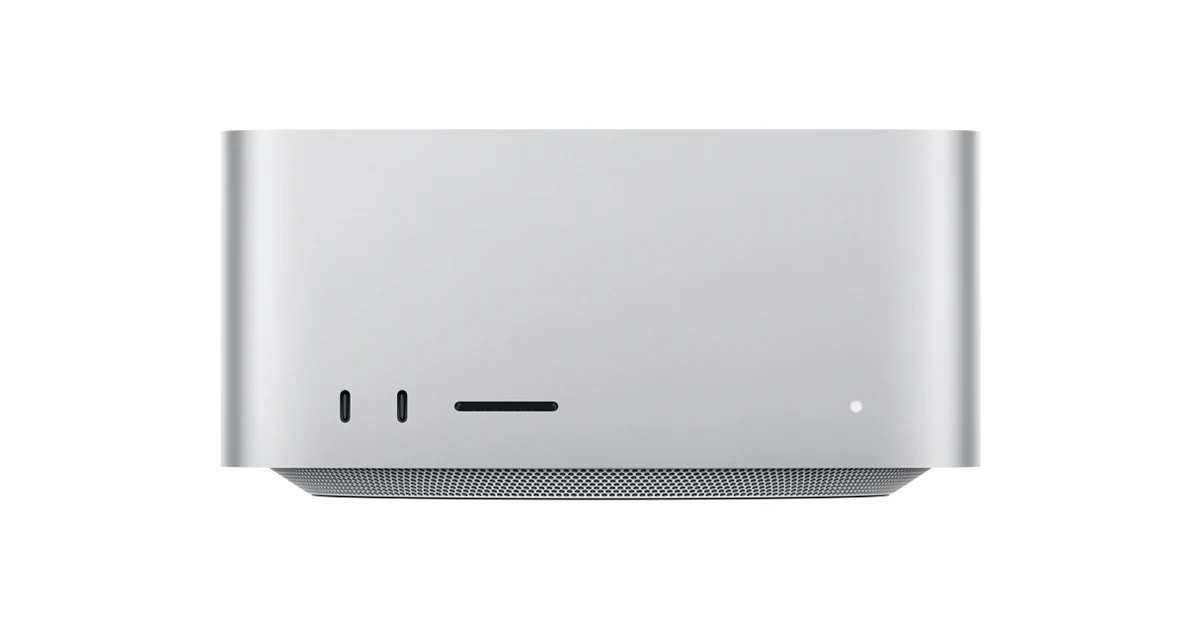
The five best AI workstations at a glance
An AI workstation is a computer with the memory, processors, and software needed to run AI tasks. For local language models, its most useful features are enough working memory, a supported GPU, and steady performance during long jobs. An AI label or an NPU badge alone does not establish those capabilities.
Choose the computer around the model you want to use, the app that runs it, and the number of people waiting for an answer. These AI workstations cover five different needs. The Mac Studio leads for large-model capacity; the Mac mini is the smaller starting point.
| Computer | Best fit | Main tradeoff |
|---|---|---|
| Mac Studio M5 Ultra, 256GB unified memory | Large local models on a Mac | High price; the announced 512GB option arrives in late October |
| Mac mini M6, 32GB unified memory, 1TB SSD | Personal chat and coding with smaller models | Fixed memory and limited room for large models |
| Framework Desktop, Ryzen AI Max+ 395, 128GB | Windows or Linux AI work | DIY extras; memory cannot be upgraded |
| CORSAIR i7600 AIR, RTX 5090, 64GB RAM | CUDA software and models that suit 32GB of GPU memory | Expensive tower; system RAM is separate from VRAM |
| NVIDIA DGX Spark, 128GB unified memory, 4TB SSD | Dedicated NVIDIA AI work | Arm software limits; high price |
All five need mains power. Allow for a display, input devices, storage choices, and any software licenses in your budget. US prices below exclude tax, and a starting price covers only the stated configuration.
1. Mac Studio: best for large local AI models
I'd choose the Mac Studio with M5 Ultra when fitting large models on one desk is the main goal. My practical configuration is the 36-core CPU, 80-core GPU, 256GB of unified memory, and a 2TB SSD. Buy more storage if your model library needs it.
The CPU and GPU share a memory pool. That gives compatible Mac software access to a much larger working space than the 32GB on an RTX 5090. macOS and other apps still need room, so the full installed amount is not a model budget.
The maximum announced configuration goes further: a 36-core CPU, 80-core GPU, 512GB of unified memory, and 16TB of storage. Apple says the 512GB option arrives in late October 2026. A buyer who needs that capacity should plan around its release and delivery date.
Why I'd buy it: large-model work with Mac-native tools such as MLX, plus an everyday desktop in the same box. The M5 Ultra line starts at $5,499 with 96GB and a 1TB SSD; the 256GB configuration costs more.
The catch: Apple silicon does not run CUDA. Check your exact AI software before moving a Windows or Linux project. I'd also resist paying for 16TB merely to get a “maxed out” machine. SSD capacity holds downloaded files; it does not replace working memory or make each answer faster.
2. Mac mini: best starting point for personal local AI
The Mac mini M6 with 32GB of unified memory and a 1TB SSD is my starting choice for one person learning local AI. It keeps the computer small and leaves the Mac Studio's large-memory expense for people who need it.
I'd begin with a quantized 8B or 14B chat or coding model and a modest context window. Those are sensible starting workloads for this capacity, with room left for the operating system. The exact file format and app still matter. A long chat or large code input can raise the requirement.
LM Studio provides a graphical way to download and run supported models. Ollama is another route for apps and development tools that need a local model service. Choose software that supports the exact model you want, then confirm that GPU acceleration is active.
Why I'd buy it: a compact personal machine for drafts, code explanations, and small local experiments. A 1TB drive gives more breathing room for downloads than the entry model's storage. The M6 configuration is limited to 32GB; the separate M5 Pro version offers up to 64GB.
The catch: this is a fixed-capacity purchase. I'd move up the list if large models are central to the job. There is little value in saving on hardware if every useful request ends in a memory error or an unworkable wait.
3. Framework Desktop: best compact Windows or Linux option
The Framework Desktop DIY Edition with Ryzen AI Max+ 395 and 128GB is a strong candidate for developers who want a compact PC with a large shared pool. It combines a 16-core CPU with Radeon 8060S integrated graphics.
Framework lists the 128GB system at $3,449 before the selected storage and other DIY extras. Include an SSD, cooling fan, power cable, and operating system in the full order. Some parts can come from a setup you already own.
Why I'd buy it: the mix of capacity, a small enclosure, and a choice of Windows or Linux. It can serve as a local AI computer while also running familiar development tools. The two M.2 storage sockets make a growing model library easier to accommodate.
The catch: the RAM is soldered. Framework's modular design does not turn this machine into a PC with replaceable memory sticks or a normal internal graphics-card upgrade path. Choose 128GB at purchase if your planned AI workloads need it.
AMD acceleration also needs a supported software path. Match the operating system, driver, runtime, and model before ordering. Windows support in an app does not by itself prove that its AMD GPU backend works on this exact hardware. I'd make that compatibility check the deciding step.
4. CORSAIR VENGEANCE i7600 AIR: best for a CUDA desktop
The VENGEANCE i7600 AIR, SKU CS-9050145-NA, is the conventional NVIDIA GPU option here. This configuration has an Intel Core Ultra 9 285K, RTX 5090, 64GB of system RAM, two 2TB SSDs, and Windows 11 Home. Its listed price is $8,699.99.
The RTX 5090 supplies 32GB of dedicated GDDR7 graphics memory. That distinction matters: the machine's 64GB of RAM does not give the GPU a single 96GB pool. Software can split some workloads between CPU and GPU, but the speed and supported methods vary.
Why I'd buy it: access to NVIDIA CUDA tools in a full-size Windows PC. I'd favor it for a development workflow already built around NVIDIA software, especially when the chosen model and context fit in GPU memory. It also leaves conventional storage and RAM expansion options.
The catch: the price is steep for 32GB of VRAM. A large unified-memory desktop may suit a capacity-limited task better. This tower also needs more physical space. Its gaming performance and lighting tell you little about the speed of your coding assistant.
At this price, I'd request performance results for the exact model, quantization, and context length before buying. A warranty and a complete system have value, but that value should solve a real need.
5. NVIDIA DGX Spark: best dedicated AI development box
The NVIDIA DGX Spark is for a developer who wants to build and serve local AI with NVIDIA's software stack. The reference system combines the GB10 Grace Blackwell Superchip, 128GB of coherent unified memory, and a 4TB SSD. NVIDIA's announced US MSRP is $4,699.
It runs DGX OS, based on Ubuntu, and uses an Arm CPU. The built-in NVIDIA environment is part of the appeal, but existing x86 applications and containers may need different builds. Check dependencies before treating it as a drop-in replacement for a Windows PC.
Why I'd buy it: a dedicated device for inference, AI application development, and supported fine-tuning jobs. It can stay on the network while you work from another computer. Its 10Gb Ethernet connection is useful for moving large files to local storage.
The catch: fitting a large model says little about response time. NVIDIA lists 273GB/s of memory bandwidth; that specification alone cannot predict tokens per second. The advertised FP4 compute figure also describes specific arithmetic, not the speed of every AI model.
A second Spark can support larger distributed jobs with compatible tools and networking. It adds cost and setup work. I'd first prove that one system meets the team's latency and concurrency needs before trying to scale across two.
How much memory do local AI workloads need?
Start with the model's weights: the learned numbers stored in its files. Quantization saves space by storing those numbers at lower precision. It can affect output quality, so choose a version whose answers still meet your needs.
A useful planning floor is parameters multiplied by bits per weight, divided by eight. The table uses decimal GB and assumes every weight uses four bits. Real files include extra information, and the running system needs more space.
| Model size | Four-bit weights only | Budget extra for |
|---|---|---|
| 8 billion parameters | About 4GB | Runtime, context, and the operating system |
| 14 billion parameters | About 7GB | Runtime, context, and the operating system |
| 32 billion parameters | About 16GB | Runtime, context, and the operating system |
| 70 billion parameters | About 35GB | Runtime, context, and the operating system |
A 70B model at four bits already exceeds a 32GB graphics card before that extra space is counted. Some software can offload part of the work, but check the resulting speed. Likewise, a PC with 32GB of RAM cannot devote all of it to a model.
Long context and several users change the budget
The context window holds the text a model can consider during a request. Its working cache can grow with context length and the number of simultaneous requests. An AI agent that reads a large codebase may need much more room than a short chat.
Leave headroom for the workload you will actually run. “Llama” names a model family with different sizes and versions, so “runs Llama” is not enough detail. Check the complete model name, file format, quantization, and context settings.
Unified memory and VRAM are different buying choices
In the Mac Studio, Mac mini, Framework Desktop, and DGX Spark, CPU and GPU share system memory. The available GPU allocation and software rules differ between them. On the CORSAIR tower, the NVIDIA card has its own VRAM. These designs need separate capacity and performance checks.
Model loading and inference speed are separate questions
Loading moves the model from storage into working memory. Inference is the work of processing your input and producing an answer. A fast SSD can shorten the first step without giving the same improvement to every generated word.
For local chat and coding, I would compare three results:
- Time to first token: how long you wait before an answer begins, including processing the input.
- Output tokens per second: how fast the response continues once generation starts.
- Performance under load: how those times change when another person or AI agent joins the queue.
Compare the same model and settings on each computer. A short prompt on a small model is not evidence for a long code review on a large one. For a voice assistant, delays across speech recognition, the language model, and speech output all contribute to the wait.
Memory bandwidth, GPU compute, software kernels, and the workload can each affect speed. A larger number on a specification sheet does not settle the choice. Ask for results that include the tasks, input length, software version, and number of users.
Choose AI PCs that support your software
Before choosing among AI workstations, pick the app and models you intend to use. This can prevent a costly mismatch between capable hardware and unsupported software.
Apple silicon works with Mac-native routes such as MLX and Metal-supported runtimes. NVIDIA GPUs serve CUDA-based development. AMD systems need a compatible AMD or Vulkan path where the chosen app supports it. The exact operating system and driver version can affect the answer.
LM Studio and Ollama offer approachable starting points for local AI. More involved serving tools may suit a team with several clients. Confirm support for the model's architecture and file format, then run a small trial before adding long context or more users.
For a coding assistant, check that the editor extension can point to your local service. Its chat panel, code completion, and tool calls may use separate settings. An app can display a local model name while another feature still calls a remote provider.
AI PCs sold for office productivity can also use an NPU, a processor built for certain AI tasks. An NPU rating alone does not show whether your chosen chat model runs on it. The software must support that device and workload. Prioritize that match over a badge.
How to set up an AI workstation for local models
Start with one app, one downloaded model, and one user. Get that small setup working before you add shared access or connect a coding tool. The same sequence helps with both a personal AI PC and a team host.
- Install the supported software. On a Mac, choose a runtime with Apple silicon support. On the RTX desktop, install the NVIDIA driver required by your app. For Framework, check support for the AMD graphics and your chosen operating system. On DGX Spark, follow the vendor's setup flow and choose software built for its Arm system.
- Download a model that fits. Check the model's license, file format, and memory needs. Start with a smaller quantized model and a short context. Keep space free for the app and other tasks.
- Confirm the hardware is doing the work. Check the app's GPU or device settings. Watch memory use while you submit a prompt. A working chat window does not by itself prove that GPU acceleration is enabled.
- Try your actual task. Ask for a code explanation, draft, or document answer that matches your work. Judge answer quality and wait time. Then increase the input size or add another user to find the useful limit.
- Connect other apps with care. Point your coding tool or chat client to the local service. Confirm its endpoint and access controls. If offline use matters, test the downloaded model with the network disconnected before relying on it for sensitive work.
For a team, choose who will handle updates, model changes, backups, and support. A workstation that one person can maintain is often a better starting point than a more complex setup nobody owns.
Keeping local AI data under your control
Jodi Bando's point is a practical one: a team may want AI help while keeping sensitive work inside its own systems. Local inference can make that possible. The privacy boundary depends on how the whole workflow is configured.
For example, LM Studio supports offline chat with downloaded models and local document processing. Downloading new models, finding updates, and fetching runtimes use the network. A locally running AI agent can still send data out through a web tool or an external API.
Keep prompts, logs, backups, and any search index in the locations your team intends. Review cloud sync, remote integrations, and telemetry settings. Audio data, a photo, or a video attachment deserves the same care as text if a future workflow uses those inputs.
For a shared AI server, add authentication and limit network access. Avoid exposing an unauthenticated model service to the public internet. Disk encryption and ordinary account security still matter. Owning an AI workstation gives you control; using that control takes deliberate setup.
Power efficiency, desk space, and the full cost
Compare the whole system cost: hardware, storage, software, electricity, and the time needed to maintain it. Local AI removes some per-request service costs, but the computer still needs power and support.
For an always-on machine, idle draw matters as well as busy power consumption. A hypothetical system averaging 100 watts all day uses 2.4kWh in 24 hours. Multiply that by your electricity rate and usage days to estimate the energy cost. Cooling can add more.
Power efficiency means useful work per unit of energy. A faster computer that finishes a batch and goes idle can compare differently from one serving requests throughout the day. Use the same workload and measure at the wall when you assess two AI workstations.
Check ventilation, cable reach, and space around the case. Fan noise matters during voice calls or quiet work. A large GPU tower also needs more room than a mini desktop. Keep peripherals proportionate to the job; a good budget mechanical keyboard can leave more money for the parts that run the model.
Questions about buying AI workstations
Should I buy a laptop instead?
Choose a laptop when you need to work away from a socket. Battery life and portable size then become real priorities. For a local AI host that stays at home or in an office, a desktop can keep serving while your laptop travels. A laptop GPU with a similar name can have different memory and power limits.
Can one of these computers train my own model?
Some can support fine-tuning within the limits of the software and model. Full training has a different resource budget from inference. Define the training method, precision, batch size, and dataset first. A machine that loads a model for chat may lack the capacity for the training job you have in mind.
Do I need new hardware to try local AI?
Try a small supported model on the computer you already have. Learn whether answer quality, speed, or capacity is the first limit you reach. For most people, that experience makes the next purchase easier to judge.
Which of these AI workstations would I choose?
I'd start with the Mac mini for personal use with smaller models. I'd choose the Mac Studio for much larger Mac-compatible workloads, Framework for a compact Windows or Linux project, the CORSAIR for an established CUDA workflow, and DGX Spark for dedicated NVIDIA AI development. Buy for the work you can name, with enough headroom for the next step.